Setting a screen time limit is easy. iPhones have done it for years, free, in Settings. If limits alone worked, you would not be reading this. The difference between a limit that holds and one that does not comes down to a single question: what happens when you hit it?
The Ignore Limit problem
Apple’s App Limits do everything right until the moment of truth. Your time runs out, the screen dims, and iOS offers you “Ignore Limit for Today” and “Remind Me in 15 Minutes”. Both are free. Both are one tap.
A barrier this cheap stops a habit for about a week. After that, dismissing the limit becomes part of opening the app, the same automatic gesture as swiping away a notification. This is the same autopilot problem that drives the scrolling you don’t even enjoy: the action happens before the intention gets a vote.
The lesson is not that limits are useless. It is that a limit needs a cost attached to breaking it.
What enforcement looks like
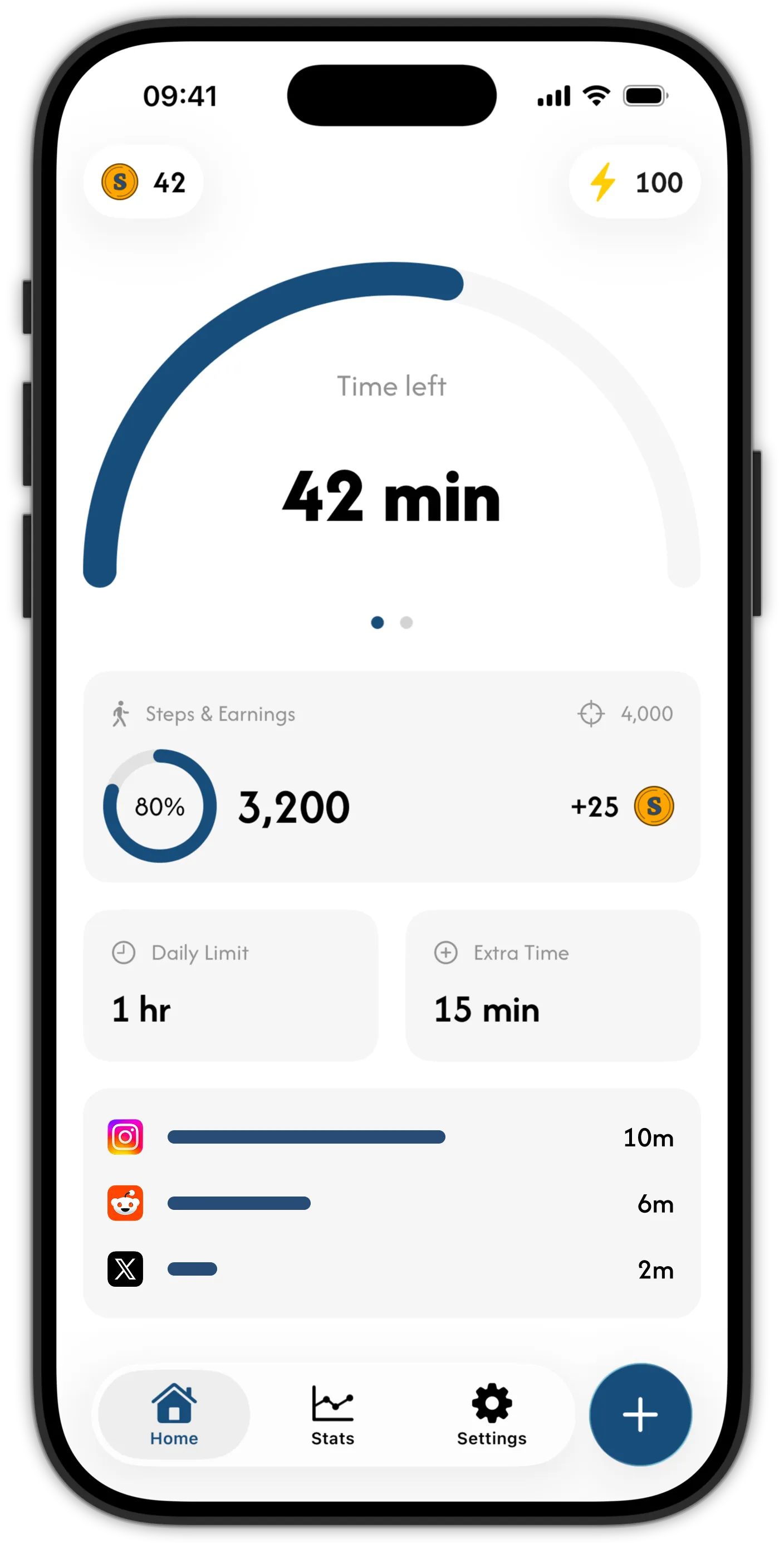
In Skrid, you set your daily limit and choose which apps, categories, and websites it covers. At the limit, those apps are blocked through Apple’s Screen Time framework, at the system level. There is no ignore button. The only way to more minutes is spending coins, and the only way to coins is walking. Every step earns them, continuously. Here is the full mechanic.
Going over your limit is still possible. It just stops being free. That single change is what makes the limit hold on week three, when motivation is gone and only the structure remains.
Asymmetric rules keep you honest
Skrid’s rules are deliberately lopsided. Tightening your limit or adding apps to the block list is always free. Loosening the limit or unblocking costs coins. Improvements are frictionless, backsliding has a price. Over months, this asymmetry quietly ratchets your setup in the right direction.
Pick a limit you can actually live with
A limit that holds is one you chose honestly, not aspirationally. Check your current daily average in Settings, Screen Time, then start about 30 percent below it. Blocking to zero sounds committed, but livable beats heroic, a theme we keep coming back to in reducing screen time without deleting social media.
Some days need a hard cap, some weeks need slack. In Skrid you can change your screen time limit and step goal whenever you want, so the same app works as a strict daily wall or as a gentle tax on your scrolling.
Setting it up
- Get Skrid free on the App Store (iOS 26 or later).
- Check your daily average in Settings, Screen Time.
- Set your Skrid limit about 30 percent below that average.
- Pick the apps and websites the limit covers.
- Set a step goal, and let your walks fund whatever extra time you truly want.
Nothing gets blocked until you set it up yourself, and Skrid never sees what you do inside your apps. When the limit lands for the first time and there is no ignore button waiting, you will notice the difference immediately.